(I am no longer answering questions on Quora's website)
My answer assumes the questioner is asking about tweets that he or she has liked, rather than tweets of theirs that others have liked - though in either case it's not possible to hide them beyond making your account public.
Liking a tweet is a semi-public act in that anyone can see that you've done it by looking at your liked tweets page, mine is here https://twitter.com/jobrodie/likes - just change the username in the URL and see yours or anyone else's (only if their account is public of course). You cannot hide any liked tweet from here beyond unliking it, which you can do by clicking once again on the heart symbol to unlike it (it's a toggling sort of arrangement: click once to like, click again to unlike).
However once you've liked a tweet Twitter will most likely have sent out a notification to the tweet's sender so it's possible (depending on their settings) that they'll have been made aware, via the notifications tab, or via pop-up notifications or by email.
Newer versions of Twitter including the latest #NewTwitter interface have also been 'surfacing' (explicitly drawing attention to) these 'like' actions in your timeline so you may see "So and so liked a tweet by XYZ". Most people find this pretty irritating and I've written a post on my tech-focused blog that addresses it called 'Hate seeing other people's likes? Some options to try' - the post has had 110,000 views since I published it, from which I assume a fair few people want to stop that feature.
Many people like a tweet to bookmark it, rather than to say 'I like what you've said' or 'I've seen this and am liking it to signal the amiable end to this exchange', or whatever meaning people ascribe to the action. There are plenty of ways to bookmark a tweet to read later and if that's all you want to do with it then do that instead of liking it and no-one needs to know.
Examples might include bookmarking the URL of the tweet (desktop) or copying and pasting its URL into some file of saved tweets, you can also email the tweet to yourself or take a screenshot. You could even create a spare account, log in there and like it then the like is not linked with your primary account. That may be taking things a bit far of course!
Showing posts with label "twitter tips". Show all posts
Showing posts with label "twitter tips". Show all posts
Sunday, 8 September 2019


Saturday, 9 July 2011
Quick post for @tom_hartley and other events organisers, on capturing tweets
I have made a study of some Twitter tools (for events mostly) but since every time I go looking for more I find more I'm pretty certain that I have but scratched the surface etc. etc. and there may well be more suitable tools than the ones mentioned below, that I don't even know of.
1. Displaying delegates' tweets attractively on a display screen in the foyer
Twitterfountain looks a bit fancy, quite nice, screen refreshes with a different tweet.
Twitterfall drops new tweets into a downwards scrolling page of tweets, users can see theirs appear soon after pressing send.
2. Displaying delegates' tweets in the conference
If you must - it can be a bit distracting to be honest, but many like it. I'd recommend Twitterfall for this. Monitter can also be used.
3. Being a delegate and tweeting from a laptop
Use Twitter.com, Tweetdeck or - if you really want to focus on the hashtag - use Tweetchat which will auto-add the hashtag to save you having to type it each time, will show you nothing other than the hashtag, and will pause for you as you scroll back.
4. Capturing the tweets as a permanent record
I always do more than one. SearchHash is my new favourite (now that What the Hashtag has stopped doing this). You can copy and paste the search results somewhere else or download as a .csv. They are not pretty though, they look like a tabulated data set rather than a range of tweets - this may not matter. You can set this up within a day of the conference starting as it seems to handle about 1,000 plus tweets in one go, but I don't recommend leaving it too late. New tweets will eventually push out older ones so download regularly and remove duplicates later.
For prettiness I am smitten with Twilert - set up soon after or before your hashtag is being used and it will send you daily, hourly, 15-minutely updates with new tweets since the last update (you can determine what rate you think you need). The tweets look lovely and the avatar is there and it's all full colour.
With such prettiness I wish it was easier to transfer the contents of the email into some other format eg a website. I can email to a blog post and it comes out fine but it would be nice to access the html and edit it to combine a run of alerts together. I don't know how to access the html though - if someone does, let me know.
Another good tool for collecting a bunch of hashtagged tweets together is Chirpstory - log in with Twitter, clear the current timeline (you don't want to add any of them if you're just looking to collect hashtags), then search for your tagged word and choose the option to move the whole page over to the collecting panel on the right.
Then go back in time to collect previous ones by pressing page 2... page 3 and so on - eventually you won't be able to go back any further. Once you've collected them all you can remove duplicates (in case you've inadvertently copied page 15 twice, say) and then you can reorder them, using the up and down arrows, so the latest tweet's at the top (default) or at the bottom (which I think is nicer for reading). Then make sure you click the pale blue button on the bottom right that says 'Create story'.
A very similar, and more frequently used, service is Storify however the last time I checked it didn't let you move a page of tweets in one go nor reorder them. Hence I prefer Chirpstory for collection. Storify is used to add commentary in between tweets which I don't think you can do with Chirpstory.
For searching a bit further back in time try Topsy. It's unlikely to give you a neat thread of them though.
This is a much shorter version of the post linked above - that one has a list of all the tools I've come across and a brief description of what they do.
Thursday, 14 April 2011
Google Realtime: Finding threaded conversations on Twitter as well as year old tweets
Shortened link for this post is http://is.gd/C9vfjG
2. Storify******************************************
UPDATE 7 July 2011: Google Realtime is no longer with us. Initially it seemed to be temporarily offline while under-bonnet tinkering happened and it was assumed it would be hooked up with Google+ however it now seems that Google is no longer accessing Twitter's stream as the deal ended on 2 July 2011. This isn't great.
******************************************
1. Google Realtime3. Wayback Machine from the Internet Archive
4. Library of Congress
1. Google Realtime is probably intended to let people watch tweets as they happen but a nice feature is that it can "re-run" older tweets from as far back as April 2010. I found tweets from me / sent to me back in 18 April 2010 by searching for both jobrodie and @jobrodie
An example or two
BoraZ, from 25 April 2010
"Yes, @JoBrodie I tell new Twitterers to import tweets into FriendFeed as the only reliable way to search old tweets years later."
We've agreed this is probably no longer true as FriendFeed's search is a bit unpredictable.
@MarkSpoff tweeted this on 7 October 2010
"@JoBrodie recording of ambient and other found sound is old as hills. Only now are the social tools there that make it something all can do."
@EvidenceMatters tweeted this, on 1 April 2011, about a 'hack your own sous-vide' event.
"@JoBrodie It was very interesting & it was good to meet diverse ple who attended. @mriemenschneidr was fund of experience/knowledge."
picked from this selection of tweets from Google Realtime's sesarch.
Threaded conversations
I think the bit that's really interesting about Google Realtime is its capacity to capture threaded conversations, even including people that you might not have been conversing with directly, but who were still contributing a conversational aside to the topic as a whole.
From @EvidenceMatters tweet above, the Realtime search results also have a 'Full conversation link' which gives this result.
A longer version is the result of a search for a conversation happening earlier today among @xtaldave @diamondlightsou and @clsresoff. The range of tweets can be found here, and selecting one of the 'Full conversation' links results in this thread, also shown below (in miniature).

I wonder if people will use Storify to capture tweets now that "What the hashtag" is no longer with us.
2. Storify and other curating tools
Storify lets you compile tweets (and other units of information, eg photos from Flickr, bits and bobs from Google, posts to Facebook groups - anything public basically) and compose a story around them. I suppose it's feasible to collect tweets as they come in, on a topic or with a hashtag, and save them as a Storify story.
"The New Curators: Weaving Stories from the Social Web" - this blog has a section on Storify and explains its use well. A nice example of the sort of use I'd put Storify to has been demonstrated by @kristinalford working with tweets from the #onsci tag.
"Onsci: Telling Better Science Stories" curated by Kristin Alford
I liked Storify the minute I saw it, it's very intuitive, has a nice interface and is easy to play around with. It takes a wee while to get your beta invite once you've registered so if you want to play around with something instantly, try the similar Keepstream. Here's an example I've just created. I prefer the interface and options given in Storify but this isn't bad. I didn't manage to get anywhere with Curated.By however.
These tools, rather than letting you find threaded conversations, let you create them from disparate units - according to the New Curators blog post linked above Robert Scoble has used the term "atoms" of information, and described curators as "information chemists" ;)
3. The Wayback Machine from the Internet Archive
I've mentioned this before but I think it bears repeating. It doesn't let you find threaded conversations but it does let you see a random selection of your historic tweets - what's available will depend on when the archive crawled your tweets. My timeline has been visited six times over three years taking a snapshot of what was going on at the time it visited.
My tweets were first 'snapped' on 23 December 2008, and then another five times since.
http://waybackmachine.org/*/http://twitter.com/JoBrodie - on the first crawl I was following and followed by 66 people and had made 333 tweets. Here I am again on 21 September 2009. Unfortunately it doesn't let you go back and forwards in your timeline as you can (to a limited extent) on Twitter itself.
It's as if all your tweets were packed up at the end of the day into slim volumes but a year later you were only allowed to look at one of them... still, it's interesting to see some old tweets.
4. Library of Congress
The US Library of Congress has been given all public tweets, by Twitter, since 2006 - but I don't know know if it's possible for people to access this database yet, or ever. The linked blog (Twitter's) refers to Google Replay which is what's now known as Google Realtime, having previously spent time as Google Updates.
Monday, 8 November 2010
Tweeting - dot .@ and at @ messages
Edit 22 October 2011 - I added this info in table form (click to enlarge)

------------------------ Original post ----------------------------
Let's pretend I follow @HomerSimpson and @MargeSimpson and so do you.
If Homer sends an '@ message' to Marge such as
HomerSimpson: @MargeSimpson I'm hungry...
then both you and I can read it but other followers of Homer (who don't also follow Marge) won't see it unless they look at his profile page (ie the message will show up on Homer's profile page and is visible to anyone who looks at it, but it won't show up in his followers' twitter feed pages).
If Homer wants to encourage others to provide food he should write (note dot)
HomerSimpson: .@MargeSimpson I'm hungry...
and then ALL of his followers will receive it in their twitter feed.
- A profile page is what anyone will see when they look at someone's profile, eg http://twitter.com/JoBrodie
- Your twitter feed page is what YOU see when YOU log in to Twitter and look at http://twitter.com/
(It used to be possible to switch off an option so that you didn't see @ messages between Homer and Marge, then Twitter stopped this - the howls of outrage brought it back, unfortunately as something from which no-one can opt out, as far as I can tell.)
Direct messages
Putting D or d as the first character will send that message only to the recipient (the @ is NOT necessary) but you can only send a D message to someone if THEY are following YOU.
HomerSimpson: d MargeSimpson I'm hungry...
will go from Homer to Marge and no-one else.
Monday, 28 June 2010
What's a hashtag?
Whenever you write something with http://www.xyz/ in it, or x.y@blah.com most computers recognise that this is a web address or an email address and turn them into an active link - clicking on them will open the web page or launch a new email message.
In Twitter, and in similar programmes, adding # in front of a word does two things. It turns the word into an active link (clicking on it from within Twitter or Twitter app will take you to the search page containing all instances of that hashtag) and it also collects up all instances of it that can be shown together (ie aggregates the tweets containing the hashtag).
This means that other aggregators, such as WTHashtag (What the Hashtag) or Twapperkeeper - examples below, can take the feed and present it on their page (ie syndicating the content on another page) - this is basically what RSS feeds do. RSS generally stands for 'really simple syndication'.
Examples
Twitter search, for #ADA2010 tag which corresponds to the American Diabetes Association conference tweets (note that # is expressed as %23) http://twitter.com/home#search?q=%23ada2010
wthashtag for ADA2010 (note that it picks up the #tag but removes the # from the URL)
http://wthashtag.com/Ada2010
Saturday, 13 February 2010
Nine point guide for #charities new to Twitter #charity #nfp
EDIT: When I first posted this I found that several accounts using Twitterfeed scraped the tweet content and added a bit.ly url or worse, an 'url4eu'. Please report any such spammers to Twitter, thanks Jo.
The shortened URL I'm using for this post is http://is.gd/8kufI
___________________________________________________________
I wrote this a year (or two?) ago for colleagues in a charity who were new to Twitter - I realise that as time has marched along these recommendations will be less 'cutting edge' useful, but they might still be helpful to some, hence I've posted ( an amended version of) them here.
1. It's been suggested that charities might want to reserve for themselves the relevant name of their charity on Twitter and on other social media (eg getting a fan page on Facebook). Seems like a good idea – I'd recommend using as few letters as possible for the Twitter channel, while still being understandable, as this will allow you more of the remaining characters in the 140-char tweets.
Also - add a "follow us on Twitter" to your website as people will visit your site and that might be the first they hear about your twitter feed; it also clarifies that it's your official twitter feed.
2. A hashtag (# before a keyword) adds a bit of focus to a word, and people can set up searches to follow instances of said word. For example I use #diabetes* if I write about something that I specifically want to be seen by people interested in that topic.
* people following the word 'diabetes' will see it whether or not I put the # symbol in front of it – the advantage of the # is for aggregator services that can collect and store all instances of a hashtag (this is useful in the setting of a conference where everyone uses the same hashtag and all the tweets can be collected). It's also useful for anyone using Tweetdeck which lets you click on the hashtag and create a column to follow it.
Probably hashtags will eventually become redundant but I've erred on the side of using them rather than not using them.
3. Find like-minded people using http://search.twitter.com/ and follow them. Like-minded might include people who have the particular medical condition your charity is funding research in, but will also include doctors and nurses (whether or not they are specifically talking about your condition) as these people are likely to want to know about your publications for example. Seek out people from your many audiences to follow and interact with.
4. Google #nfptweetup - it means not for profit meet-up of people in the third sector using Twitter. There are meetings every now and again where people share "best practice" and ideas.
5. Ask your colleagues to append something like
"Follow Charity UK 's news feed on Twitter at http://twitter.com/CharityUK
to the end of their email messages because this information will then be being sent to a wide range of people.
6. It's OK (particularly initially) to post in a 'broadcast' mode – ie just saying things about who your charity is and where people can find information. You might also use one of the systems that will post an automated tweet for you whenever a new story is added to your website. After a while though, it's more helpful to be a bit interactive and engage with people, answering questions, posing questions etc.
There's no harm in writing "please RT" for "please retweet" at the end of occasional tweets and then people can do a little bit of promotion for you. People following me are interested in things relating to diabetes, librarianship and science communication so I'd be likely to RT the things people post about those, as it would be of interest to them.
7. Don't forget it takes time to build up a presence, and to 'get' what Twitter is all about. You can use it to highlight news and include a signposting link where people can read more, to conduct a conversation, to get feedback, to drum up support for a campaign etc.
If you have a presence on other social sites (like Facebook) mention your twitter feed there (ie 'cross fertilise!).
8. It's possible that a number of people in your potential readership have not come across Twitter yet so maybe a short page on your website highlighting how to get a Twitter account and follow your feed isn't a bad idea. You don't really need to write anything complicated and can probably get most of it from Twitter's help pages.
9. You can also sign up to a monitoring service, like Google Alerts or SocialOomph (formerly Tweetlater) which will send you periodic emails containing tweets that reference the keyword(s) you're interested in.
Related posts
- Athens passwords available for some voluntary sector organisations (10 September 2010)
- Healthy journalism: challenges and solutions - seminar from Patient Information Forum, at Wellcome Trust (25 April 2010)
- Curated posts: liveblogging science conferences - my thoughts on tweeting medical research charity conferences (16 February 2010)
- Following conference hashtag tweets in real time and saving them for later (3 January 2010)
Sunday, 3 January 2010
Following conference hashtag tweets in real time and saving them for later
******************************************
UPDATE 7 July 2011: Google Realtime is no longer with us. Initially it seemed to be temporarily offline while under-bonnet tinkering happened and it was assumed it would be hooked up with Google+ however it now seems that Google is no longer accessing Twitter's stream as the deal ended on 2 July 2011. This isn't great.
Also, see the more up to date post linked in the column on the right hand side, about a list of Twitter tools.
******************************************
All the fashionable conferences or events have a hashtag. This turns a mere word into a clickable link which takes you to a 'channel' of tweets all talking about the same thing.
There are lots of ways of following these tweeted hashtags, in real time, and you can also save all the tweets for later. Here are some ways of doing this.
Example hashtag is #scio10 which stands for Science Online 2010.
---------------------------------------------------------------------------------------------
EDIT: 7 November 2010 - for further investigation: "Tweetdoc" as suggested by @AISSMa
- it seems to create a rather useful and straightforward PDF for you, which is a plus.
---------------------------------------------------------------------------------------------
1. Twitter itself
http://search.twitter.com - type in #scio10 or scio10 and sit back and watch. You might have to press 'refresh' every now and again (I think this depends on your browser) but it's pretty good.
Realtime? Yes
Archive? Not long-term.
Keeps picture of who is tweeting linked to their tweet? Yes
2. FriendFeed
The official conference FriendFeed room is http://friendfeed.com/scienceonline2010 which incorporates hashtag mentions and official comment from the dedicated twitter feed @scio10
My only bleat is that FriendFeed tends to lose the details of who said what, something that some of the other services seem to be able to keep (see this pic which gives an example http://www.flickr.com/photos/jodiepedia/3977940848/).
For just the tweets containing the hashtag though, use this link http://friendfeed.com/search?q=%23scio10
FriendFeed does two things - it lets you read Twitter feeds, but it also lets you comment on them and write directly to FF.
See also - Cunning use of FriendFeed - find old tweets, yours or others - for more on why I really like certain features of FriendFeed.
Realtime? Yes, freakishly good - see http://friendfeed.com/public for terrifying proof.
Archive? Excellent, persists for a long time.
Keeps picture? Not for generic feed into room, yes for individual (if on FriendFeed).
3. wthashtag - What the Hashtag
Any topic that's trending will show up automatically in wthashtag. If a topic isn't trending, then the wthashtag needs to be set up manually, for which you need a (free) account. The advantage of this is not so much the real time view of tweets (I can't remember how good this is) but the ability to generate a transcript of the last day's tweets.
Realtime? I think so, yes
Archive? Yes, but limited and not permanent
Keeps pictures? Yes
4. Twapperkeeper
#scio10 Twapperkeeper feed
No account needed to set up a twapperkeeper, although account required if you want to do more with it I think. It's a while since I've used it but I was very impressed. You can even set up a filter so that the hashtag plus another word will filter into a particular folder - this might be useful where you have several sessions running concurrently.
For example, during the recent #scidebate (debate between Ben Goldacre and Paul Drayson) I toyed with splitting examples of good science reporting from bad by using !g and !b in addition to #scidebate. Technically it worked perfectly (but it turned out that artificially splitting articles in this way was a bit of a palaver so we all quietly forgot about it) and you can see that the tweets are still there http://twapperkeeper.com/scidebate/
Realtime? I think so, but honestly can't remember
Archive? Yes, awesome
Keeps pictures? Yes
4.5. Hashtag.org
Haven't investigated it yet but looks interesting. Hat tip @zeno001
5. Tweetdeck - iPhone app
Although I do have this somewhere on my laptop I only really use it as an app on my iPhone and so my experience of it is pretty much limited to that. This requires download whereas everything else here is web-based.
Tweetdeck lets you create a deck of tweets based on a hashtag, which you can watch in real time.
Realtime? Yes
Archive? Not that I'm aware of
Keeps pictures? Yes
6. Twitterfall
Very good, although a little bit fiddly. Type in your hashtag and it does the rest.
Realtime? Yes
Archive? Not that I'm aware of
Keeps pictures? Yes
7. Monitter
Very similar to Twitterfall, but with three 'decks'.
Realtime? Yes
Archive? Not that I'm aware of
Keeps pictures? Yes
I've watched or saved a lot of conference tweets in the time I've been on Twitter and have used Tweetdeck to interact when there, Twitterfall if watching elsewhere, FriendFeed for an augmented experience, Twitter itself as a back channel (and FriendFeed) and both wthashtag and Twapperkeeper to save it all for later. I think Twitterfall is used quite successfully by events folks to show the tweets live on screen.
These are just the ones I've used or heard of. Doubtless there are others...
Wednesday, 30 December 2009
Cunning use of FriendFeed - find old tweets, yours or others
EDIT: 5 June 2010 - It seems that Google is developing a Twitter archive, currently from Feb 2010, but which will stretch back to the first tweets in 2006. More here
All The Old Tweets Are Found: Google Launches Twitter Archive Search
http://searchengineland.com/all-the-old-tweets-are-found-google-launches-twitter-archive-search-39962
The post below does rather assume that you already have a FriendFeed account of course...
--------------------------------
If you have a FriendFeed account and your Twitter feed is on it, simply use the following syntax to find your old tweets - I've found my first ever tweet on there (Jun 08) so it seems the tweets persist for a while.
eg FriendFeed from:jobrodie will find any of my tweets (or posts I've made to FriendFeed) where I've mentioned the word FriendFeed.
There are a couple of people I'm following on Twitter who often post really useful interesting links that I might want to catch up with later. Favouriting individual tweets is one way but it's not that great a method for searching them retrospectively, but FriendFeed is.
If that person (or automated RSS feed, eg from a newspaper - it doesn't have to be an individual) isn't on FriendFeed, but their Twitter feed isn't locked - then you can add them as an 'imaginary friend' and follow them on FriendFeed that way. Then you can search their tweets.
Here's how (it assumes you have a FriendFeed account!) - mine's themed in 'Steampunk' colours.
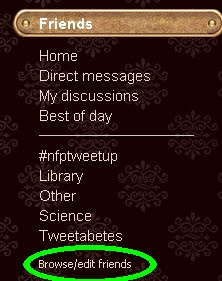
1. Go to http://www.friendfeed.com, log in, and look for your Friends list
2. Click on the Browse/edit friends link, highlighted in lime green below.
3. Click on the Imaginary friends link (highlighted in magenta below).

4. Then click on the self-explanatory button - Create imaginary friend.

5. You are then asked to name the imaginary friend - I've called mine "DiabetesTrials" - and then clicking 'Create' will do precisely that.

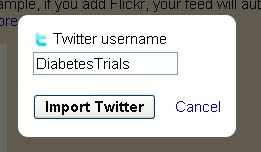
6. The next page gives you an option to add different feeds - it could be Flickr or pretty much anything that is RSSable, but just click on the Twitter button (highlighted in orange below) to add a Twitter feed.

7. Add in the name of the Twitter feed - in this case it's DiabetesTrials and press 'Import Twitter'.
8. The new Twitterfeed appears in the 'Active Services' (highlighted in lime green below) and you can add more by repeating the process. If you want to see the tweets that @DiabetesTrials has posted, click on their name, highlighted in magenta in the pic below.

9. Ta-da

10. To search for an old tweet use similar syntax to that above - the significant difference is that 'DiabetesTrials' is not on FriendFeed and so you can't use the from:DiabetesTrials bit.
Instead you need to use friends:jobrodie eg:
pioglitazone friends:jobrodie

Note the circle in green in the pic above, it's highlighting a padlock, which is next to any imaginary friend's feed - these are locked.
Anyone other than me will not be able to see the posts from such a locked, imaginary friend feed, it's only visible by me. Though there's nothing to stop you creating an imaginary friend for DiabetesTrials yourself (and I won't know about it).
All The Old Tweets Are Found: Google Launches Twitter Archive Search
http://searchengineland.com/all-the-old-tweets-are-found-google-launches-twitter-archive-search-39962
The post below does rather assume that you already have a FriendFeed account of course...
--------------------------------
If you have a FriendFeed account and your Twitter feed is on it, simply use the following syntax to find your old tweets - I've found my first ever tweet on there (Jun 08) so it seems the tweets persist for a while.
keyword1 keyword2 from:yourTwittername
eg FriendFeed from:jobrodie will find any of my tweets (or posts I've made to FriendFeed) where I've mentioned the word FriendFeed.
There are a couple of people I'm following on Twitter who often post really useful interesting links that I might want to catch up with later. Favouriting individual tweets is one way but it's not that great a method for searching them retrospectively, but FriendFeed is.
If that person (or automated RSS feed, eg from a newspaper - it doesn't have to be an individual) isn't on FriendFeed, but their Twitter feed isn't locked - then you can add them as an 'imaginary friend' and follow them on FriendFeed that way. Then you can search their tweets.
Here's how (it assumes you have a FriendFeed account!) - mine's themed in 'Steampunk' colours.
1. Go to http://www.friendfeed.com, log in, and look for your Friends list
2. Click on the Browse/edit friends link, highlighted in lime green below.

3. Click on the Imaginary friends link (highlighted in magenta below).

4. Then click on the self-explanatory button - Create imaginary friend.

5. You are then asked to name the imaginary friend - I've called mine "DiabetesTrials" - and then clicking 'Create' will do precisely that.

6. The next page gives you an option to add different feeds - it could be Flickr or pretty much anything that is RSSable, but just click on the Twitter button (highlighted in orange below) to add a Twitter feed.

7. Add in the name of the Twitter feed - in this case it's DiabetesTrials and press 'Import Twitter'.

8. The new Twitterfeed appears in the 'Active Services' (highlighted in lime green below) and you can add more by repeating the process. If you want to see the tweets that @DiabetesTrials has posted, click on their name, highlighted in magenta in the pic below.

9. Ta-da

10. To search for an old tweet use similar syntax to that above - the significant difference is that 'DiabetesTrials' is not on FriendFeed and so you can't use the from:DiabetesTrials bit.
Instead you need to use friends:jobrodie eg:
pioglitazone friends:jobrodie

Note the circle in green in the pic above, it's highlighting a padlock, which is next to any imaginary friend's feed - these are locked.
Anyone other than me will not be able to see the posts from such a locked, imaginary friend feed, it's only visible by me. Though there's nothing to stop you creating an imaginary friend for DiabetesTrials yourself (and I won't know about it).
Subscribe to:
Posts (Atom)



 Posts

