Last week I read an article and one of the commenters happened to say "Maybe the iPhone will finally get copy and paste!" - but it already does and anyone who's ever read any of my blog posts will know how much I love writing technical instructions, so here are some ;)
Copying an URL to send to someone else, eg from a Tweet - three methods
1. Tapping the URL sharply, or even lightly pressing it would just open it, you need to press and hold on the URL for about two seconds - a menu will appear with the URL in it saying Open, Copy or Cancel - Copy's the one you want here. You can use this to find out what an URL actually is, as a sort of taskbar proxy (I hardly ever click on an URL on my laptop without hovering over it first to see where it's going). This technique does not expand shortened URLs though.
2. Press and hold anywhere on the screen that isn't the URL, for about two seconds, then let go - a selection tool will appear allowing you to select the text within two blue bars. When you've moved the bars to what you want to pick click the Copy link button that's by now already on the screen. This is the generic way to copy any text on your iPhone.
3. I think most Twitter clients for iPhone have the facility where you can email a Tweet. You don't have to actually email it of course, it just opens a new email with the content of the tweet and your URL of interest within it and it's a bit easier to clip it out neatly than using the method in 1.
Also, bonus tip. If you touch the top of your screen you're immediately pinged back to the top of the page with a superfast scroll.
And pressing the two main buttons (one at the front plus one at the top) together takes a screenshot which is then stored in your camera roll.
I expect everyone has iPhone 4s now but I was so surprised that someone hadn't found the copy and paste function I thought I'd mention it in case others hadn't too.
Showing posts with label "how to". Show all posts
Showing posts with label "how to". Show all posts
Monday, 7 March 2011


Thursday, 23 December 2010
How to unsubscribe yourself from a JISCmail mailing list
The quickest way to unsubscribe from any JISC mailing list is to send an email to listserv@jiscmail.ac.uk
with the message
unsubscribe LISTNAME
This instruction comes from the jiscmail FAQ
http://www.jiscmail.ac.uk/help/subscribers/subscribercommands.html
I think you can also send an email to jiscmail@jiscmail.ac.uk with the message
unsubscribe listname --
(with the hyphens)
But you might not really want to unsubscribe...
On pretty much every mailing list I've been on someone will eventually send an 'unsubscribe' message to the entire list. This usually plays out with a few people explaining that they've sent the message to the list with others sending annoyed messages at the unfairness of it all. With all the bad feeling a few other people try and unsubscribe as well... and so on... but eventually it's all tidied up.
The next time this happens one of the mailing lists I subscribe to I shall point them to the jiscmail FAQ and this blog post!
I suspect that most people probably don't really want to unsubscribe, they just want to stop being annoyed by the endless loop of unproductive messages.
You can either send a message to the email address above instructing jiscmail to send you a digest of the posts (so you get one post per day for example) or you can suspend the sending of emails for a set time. The commands are:-
for a digest of messages
set listname digests (and to switch it off - set listname nodigests)
to suspend mail while on holiday
set listname nomail (to switch off - set listname mail)
Or, you can visit the homepage of your mailing list, which will have the following format
https://www.jiscmail.ac.uk/cgi-bin/webadmin?A0=listname
You'll need to log in with the email address you use for this mailing list - if you don't have a password for the JISC site you can create one.
Sometimes sending a message (by mistake) to the entire list can work anyway because the moderator will see it and delete you manually, but best not to rely on it in case they don't.
with the message
unsubscribe LISTNAME
This instruction comes from the jiscmail FAQ
http://www.jiscmail.ac.uk/help/subscribers/subscribercommands.html
I think you can also send an email to jiscmail@jiscmail.ac.uk with the message
unsubscribe listname --
(with the hyphens)
But you might not really want to unsubscribe...
On pretty much every mailing list I've been on someone will eventually send an 'unsubscribe' message to the entire list. This usually plays out with a few people explaining that they've sent the message to the list with others sending annoyed messages at the unfairness of it all. With all the bad feeling a few other people try and unsubscribe as well... and so on... but eventually it's all tidied up.
The next time this happens one of the mailing lists I subscribe to I shall point them to the jiscmail FAQ and this blog post!
I suspect that most people probably don't really want to unsubscribe, they just want to stop being annoyed by the endless loop of unproductive messages.
You can either send a message to the email address above instructing jiscmail to send you a digest of the posts (so you get one post per day for example) or you can suspend the sending of emails for a set time. The commands are:-
for a digest of messages
set listname digests (and to switch it off - set listname nodigests)
to suspend mail while on holiday
set listname nomail (to switch off - set listname mail)
Or, you can visit the homepage of your mailing list, which will have the following format
https://www.jiscmail.ac.uk/cgi-bin/webadmin?A0=listname
You'll need to log in with the email address you use for this mailing list - if you don't have a password for the JISC site you can create one.
Sometimes sending a message (by mistake) to the entire list can work anyway because the moderator will see it and delete you manually, but best not to rely on it in case they don't.
Thursday, 18 November 2010
How to read PDFs, and other docs, offline on an iPhone using Dropbox
Shortened link for this post is http://is.gd/hlKJC
Note - there are other ways to do this, I just happen to have used this one to save files to my iPhone.
I was inspired to dig out the draft text of this post after reading a Facebook status update from my friend David Bradley aka @sciencebase recommending the service. As far as I'm aware Dropbox works perfectly on an iPad although I don't have one of those so can't confirm.
General guide to using Dropbox While I can't pretend to understand the minutiae of cloud computing Dropbox is an example of this sort of thing. With a free account (which gives you 2GB of storage space) you can access your files via the internet from any networked computer. But, and this is important, your files are also stored as a local copy on your own machine - you just need an internet connection to synchronise them with the online version.
On downloading the Dropbox software (I don't think it's very big) it will create for you a Dropbox folder within your own file architecture (you can choose where it goes) and you can start putting files in there. I have Dropbox downloaded onto my home and work computer and the files that I tweak on those computers appear, miraculously ready-tweaked, when I get into work and vice versa. If your internet connection isn't working and you make changes to a file it will remain on the computer on which you edited it, but it will be unsyncrhonised with your other Dropbox.
You can tell the health status of each file and folder as there's a little green tick next to any file / folder which is up to date and syncrhonised, there's a rotating blue icon to indicate one that's being updated and when you open a file to work on it will have a red cross next to it (you need to save and close for it to update). So if you want to try this go to http://www.dropbox.com/ (they have a video there you can watch to tell you more about the service), create an account and sign up.
And now a word from our sponsors :)
Anyone can sign up for free 2GB but if you know someone who already has an account ask them for their 'referrer link' which can net you an extra 250mb - @sciencebase's referrer link is https://www.dropbox.com/referrals/NTgzNTg5MDk (Disclaimer: he isn't actually sponsoring me, I just like that phrase - my referrer link's at the end of the blog I'm just giving him top billing as he inspired me to update my post).
'MakeUseOf' have written a free guide but I confess I've not actually looked at it as I'm very familiar with Dropbox, but here it is http://sciencebase.tradepub.com/free/w_make17/prgm.cgi
Edit: Originally I mistakenly said that David had written this but he let me know that it was another company so have edited the above sentence.
You'll need an email address and a (self-created) password to log in - once you've installed the software you won't need to log in to use your files on your computer(s), only if you want to use the web interface. The web version is good - you can upload and delete files (but to edit them you'd have to download, delete and re-add so better to use your Dropbox folder for that).
A very easy way to sign up, if you don't want to start from scratch, is to ask one of your friends to send you an invite to share a folder with them - this will lead you through the process quite nicely.
Dropbox on the iPhone The iPhone Dropbox app is free from the appstore so all you need to do is download it and log in. Your files will then synchronise and you can read them online. It can open most things - I think it used to struggle with .rtf but that may have been fixed now. Most of mine are .txt, .doc, .ppt and it handles them fine. I can't remember if it cares whether it's .doc or .docx so you might want to double check.
For me, the big bonus is that you can open any file while connected to the internet and favourite it (using the star icon at the bottom of the iPhone screen). This means that if you need to access it in a low signal area you'll be able to. In the settings section (available from the app's start screen) you can set the size of your local storage (mine's 200MB but you can go up to 1GB). If you download the free PlainText app you can sync it (the default is a single PlainText folder but you can tweak it to sync with all your folders) and you can create new .txt documents on your iPhone - ie you can type something on your iPhone and then pick it up at your desk or at home. Nifty.
EDIT: I read a comment on one of Ben Goldacre's (secondary) blog posts which highlighted that this also works for .mp3 files etc. etc. Of course it does, why didn't I think of that??!!
What happens when you exceed your storage space? I once did this - don't forget that if you share Dropbox folders with other people then all of the contents you share adds towards your 2GB limit and it soon adds up. No files were deleted but I couldn't save any edits or add new files until I moved or deleted some older files. My only annoyance with Dropbox is that it didn't tell me there was a problem until I was at 2.5GB and had it mentioned it sooner I'd have pruned some files with less stress. But all was fine, but it's not a bad idea to check periodically what percentage of your allowance you're using.
Be aware though, that if you delete a file on your computer it isn't permanently deleted - this is often a good thing if you delete in error as you can undo this. As far as I can tell, 'deleted' files may actually contribute to your storage space - you can log in to your web account and choose the option to show deleted files, you'll see them in grey. You're then given the option to delete these permanently. Deleting files is a two-step process which, in the long run, I think is no bad thing - but useful to be aware of in case your storage starts to rack up.
I've been using Dropbox since January 2010 and am very pleased with it - I am not affiliated with them or anything dodgy like that :) ...and my referral link is https://www.dropbox.com/referrals/NTQwMDAxMDQ5
Note - there are other ways to do this, I just happen to have used this one to save files to my iPhone.
I was inspired to dig out the draft text of this post after reading a Facebook status update from my friend David Bradley aka @sciencebase recommending the service. As far as I'm aware Dropbox works perfectly on an iPad although I don't have one of those so can't confirm.
General guide to using Dropbox While I can't pretend to understand the minutiae of cloud computing Dropbox is an example of this sort of thing. With a free account (which gives you 2GB of storage space) you can access your files via the internet from any networked computer. But, and this is important, your files are also stored as a local copy on your own machine - you just need an internet connection to synchronise them with the online version.
On downloading the Dropbox software (I don't think it's very big) it will create for you a Dropbox folder within your own file architecture (you can choose where it goes) and you can start putting files in there. I have Dropbox downloaded onto my home and work computer and the files that I tweak on those computers appear, miraculously ready-tweaked, when I get into work and vice versa. If your internet connection isn't working and you make changes to a file it will remain on the computer on which you edited it, but it will be unsyncrhonised with your other Dropbox.
You can tell the health status of each file and folder as there's a little green tick next to any file / folder which is up to date and syncrhonised, there's a rotating blue icon to indicate one that's being updated and when you open a file to work on it will have a red cross next to it (you need to save and close for it to update). So if you want to try this go to http://www.dropbox.com/ (they have a video there you can watch to tell you more about the service), create an account and sign up.
And now a word from our sponsors :)
Anyone can sign up for free 2GB but if you know someone who already has an account ask them for their 'referrer link' which can net you an extra 250mb - @sciencebase's referrer link is https://www.dropbox.com/referrals/NTgzNTg5MDk (Disclaimer: he isn't actually sponsoring me, I just like that phrase - my referrer link's at the end of the blog I'm just giving him top billing as he inspired me to update my post).
'MakeUseOf' have written a free guide but I confess I've not actually looked at it as I'm very familiar with Dropbox, but here it is http://sciencebase.tradepub.com/free/w_make17/prgm.cgi
Edit: Originally I mistakenly said that David had written this but he let me know that it was another company so have edited the above sentence.
You'll need an email address and a (self-created) password to log in - once you've installed the software you won't need to log in to use your files on your computer(s), only if you want to use the web interface. The web version is good - you can upload and delete files (but to edit them you'd have to download, delete and re-add so better to use your Dropbox folder for that).
A very easy way to sign up, if you don't want to start from scratch, is to ask one of your friends to send you an invite to share a folder with them - this will lead you through the process quite nicely.
Dropbox on the iPhone The iPhone Dropbox app is free from the appstore so all you need to do is download it and log in. Your files will then synchronise and you can read them online. It can open most things - I think it used to struggle with .rtf but that may have been fixed now. Most of mine are .txt, .doc, .ppt and it handles them fine. I can't remember if it cares whether it's .doc or .docx so you might want to double check.
For me, the big bonus is that you can open any file while connected to the internet and favourite it (using the star icon at the bottom of the iPhone screen). This means that if you need to access it in a low signal area you'll be able to. In the settings section (available from the app's start screen) you can set the size of your local storage (mine's 200MB but you can go up to 1GB). If you download the free PlainText app you can sync it (the default is a single PlainText folder but you can tweak it to sync with all your folders) and you can create new .txt documents on your iPhone - ie you can type something on your iPhone and then pick it up at your desk or at home. Nifty.
EDIT: I read a comment on one of Ben Goldacre's (secondary) blog posts which highlighted that this also works for .mp3 files etc. etc. Of course it does, why didn't I think of that??!!
What happens when you exceed your storage space? I once did this - don't forget that if you share Dropbox folders with other people then all of the contents you share adds towards your 2GB limit and it soon adds up. No files were deleted but I couldn't save any edits or add new files until I moved or deleted some older files. My only annoyance with Dropbox is that it didn't tell me there was a problem until I was at 2.5GB and had it mentioned it sooner I'd have pruned some files with less stress. But all was fine, but it's not a bad idea to check periodically what percentage of your allowance you're using.
Be aware though, that if you delete a file on your computer it isn't permanently deleted - this is often a good thing if you delete in error as you can undo this. As far as I can tell, 'deleted' files may actually contribute to your storage space - you can log in to your web account and choose the option to show deleted files, you'll see them in grey. You're then given the option to delete these permanently. Deleting files is a two-step process which, in the long run, I think is no bad thing - but useful to be aware of in case your storage starts to rack up.
I've been using Dropbox since January 2010 and am very pleased with it - I am not affiliated with them or anything dodgy like that :) ...and my referral link is https://www.dropbox.com/referrals/NTQwMDAxMDQ5
Monday, 8 November 2010
Tweeting - dot .@ and at @ messages
Edit 22 October 2011 - I added this info in table form (click to enlarge)

------------------------ Original post ----------------------------
Let's pretend I follow @HomerSimpson and @MargeSimpson and so do you.
If Homer sends an '@ message' to Marge such as
HomerSimpson: @MargeSimpson I'm hungry...
then both you and I can read it but other followers of Homer (who don't also follow Marge) won't see it unless they look at his profile page (ie the message will show up on Homer's profile page and is visible to anyone who looks at it, but it won't show up in his followers' twitter feed pages).
If Homer wants to encourage others to provide food he should write (note dot)
HomerSimpson: .@MargeSimpson I'm hungry...
and then ALL of his followers will receive it in their twitter feed.
- A profile page is what anyone will see when they look at someone's profile, eg http://twitter.com/JoBrodie
- Your twitter feed page is what YOU see when YOU log in to Twitter and look at http://twitter.com/
(It used to be possible to switch off an option so that you didn't see @ messages between Homer and Marge, then Twitter stopped this - the howls of outrage brought it back, unfortunately as something from which no-one can opt out, as far as I can tell.)
Direct messages
Putting D or d as the first character will send that message only to the recipient (the @ is NOT necessary) but you can only send a D message to someone if THEY are following YOU.
HomerSimpson: d MargeSimpson I'm hungry...
will go from Homer to Marge and no-one else.
Friday, 20 August 2010
How to block Facebook's Places thing
Edit: I've also found an almost identical post over at Wired which was posted yesterday
which is annoyingly much better than mine, with ace pictures. Ah well ;)
I had some lovely pictures in an older post here... http://brodiesnotes.blogspot.com/2010/06/how-to-block-facebook-applications.html
-------
I've no real idea what 'Places' actually is, but I've adopted a policy of blocking every new thing that Facebook comes up with until they learn a bit of respect ;)
I use Facebook as a 'friend management system', or 'FMS' for want of a better phrase, for the people I already know, not to acquire new friends (I'm not saying I've not used it for that purpose but it's not my primary consideration) and this means that I'm reluctant to have my comings and goings displayed too far beyond my chums on Facebook. Just to spite them really as it's all fairly public on Twitter and elsewhere.
If you want to block Places, try this.
1. Click 'Account' (top right hand side of screen) to bring up menu options, choose Privacy Settings.
2. On the settings page scroll to bottom and click 'Customise settings'
3. On the 'Places I check in to' it will probably be set to 'Friends only' - click the arrow next to it and choose 'Customise'.
4. On the 'Custom privacy' window that pops up, next to 'Friends only' click the arrow and choose 'Only me' (or whatever variant you prefer).
5. Click 'Save setting' - that's it, you're done, you don't need to click anything else as it's now saved.
6. While you're at it, do the same for your other settings too :)
which is annoyingly much better than mine, with ace pictures. Ah well ;)
I had some lovely pictures in an older post here... http://brodiesnotes.blogspot.com/2010/06/how-to-block-facebook-applications.html
-------
I've no real idea what 'Places' actually is, but I've adopted a policy of blocking every new thing that Facebook comes up with until they learn a bit of respect ;)
I use Facebook as a 'friend management system', or 'FMS' for want of a better phrase, for the people I already know, not to acquire new friends (I'm not saying I've not used it for that purpose but it's not my primary consideration) and this means that I'm reluctant to have my comings and goings displayed too far beyond my chums on Facebook. Just to spite them really as it's all fairly public on Twitter and elsewhere.
If you want to block Places, try this.
1. Click 'Account' (top right hand side of screen) to bring up menu options, choose Privacy Settings.
2. On the settings page scroll to bottom and click 'Customise settings'
3. On the 'Places I check in to' it will probably be set to 'Friends only' - click the arrow next to it and choose 'Customise'.
4. On the 'Custom privacy' window that pops up, next to 'Friends only' click the arrow and choose 'Only me' (or whatever variant you prefer).
5. Click 'Save setting' - that's it, you're done, you don't need to click anything else as it's now saved.
6. While you're at it, do the same for your other settings too :)
Sunday, 6 June 2010
How to block Facebook applications
Short link for this post is http://is.gd/cEZIn
Click on any of the pictures to enlarge.
Edit 7 June 2010:
I might have just found a way of blocking all applications at once, by switching off 'platform applications' - if true, do this instead and ignore the text below :)
Account > Privacy settings > Scroll down to the bottom of the page > In 'Applications and websites' choose the link 'Edit your settings' > Click on 'Turn off' all platform applications.
This phrase appears in the section on 'Information accessible through your friends':
"Note: your name, Profile picture, gender, networks and user ID (along with any other information you've set to everyone) is available to friends' applications unless you turn off platform applications and websites."
-------------------------------------------------------------
This is how to block applications individually
Blocking a Facebook app is usually a two-step process - there doesn't appear to be a way to "block all apps except..." so it's a manual process for each one. Since Facebook apps can apparently access "your friends' info" (see blue highlight in the second screenshot below) then if I'm that friend I'd prefer that it didn't access my info. I assume the info is more than what is publicly available because if you're my friend you can see my entire profile.
If you want to find the apps that you're friends are currently using then, from your home / feed page, click on 'Applications' in the left hand side (see yellow highlight in first pic below), then the name of an application (highlighted in green below).
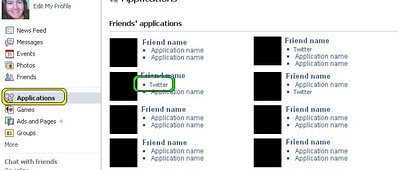
You'll be taken to a page that looks like this...
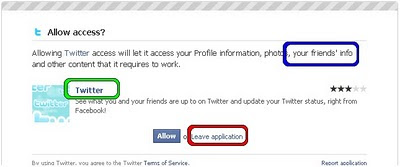
...here you need to click, again, on the name of the app (in green) and not on the part saying 'Leave application' (highlighted in red) - as far as I can see this is just a red herring to return you to your homepage and it doesn't block the app.
Once you've clicked you'll open up a new tab / window looking like the pic below. Click on the phrase 'Block application' (highlighted in pink) and a confirm window will appear, click to Block and then an acknowledgement will pop up to say that you've blocked the app.
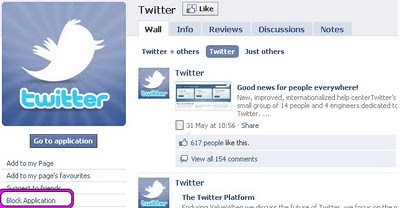
You can now close the new page that opened, and go back to your profile in the original Facebook window.
Done.
If you want to block all applications from accessing any of your information I'm afraid you'll have to do this for each application, or put your friends on a limited profile view list.
If you are logged in to Facebook then you should be able to edit your Application settings by clicking on this link http://www.facebook.com/editapps.php?ref=mb or click on Account (top right) > Application settings. This shows you the apps that you are currently using or have authorised; you can delete or change their privacy settings here.
If you want to see all the applications you've currently blocked then follow this to get to the page: Account > Privacy settings > scroll to 'Block lists' and click on 'Edit your lists'.
Click on any of the pictures to enlarge.
Edit 7 June 2010:
I might have just found a way of blocking all applications at once, by switching off 'platform applications' - if true, do this instead and ignore the text below :)
Account > Privacy settings > Scroll down to the bottom of the page > In 'Applications and websites' choose the link 'Edit your settings' > Click on 'Turn off' all platform applications.
This phrase appears in the section on 'Information accessible through your friends':
"Note: your name, Profile picture, gender, networks and user ID (along with any other information you've set to everyone) is available to friends' applications unless you turn off platform applications and websites."
-------------------------------------------------------------
This is how to block applications individually
Blocking a Facebook app is usually a two-step process - there doesn't appear to be a way to "block all apps except..." so it's a manual process for each one. Since Facebook apps can apparently access "your friends' info" (see blue highlight in the second screenshot below) then if I'm that friend I'd prefer that it didn't access my info. I assume the info is more than what is publicly available because if you're my friend you can see my entire profile.
If you want to find the apps that you're friends are currently using then, from your home / feed page, click on 'Applications' in the left hand side (see yellow highlight in first pic below), then the name of an application (highlighted in green below).

You'll be taken to a page that looks like this...

...here you need to click, again, on the name of the app (in green) and not on the part saying 'Leave application' (highlighted in red) - as far as I can see this is just a red herring to return you to your homepage and it doesn't block the app.
Once you've clicked you'll open up a new tab / window looking like the pic below. Click on the phrase 'Block application' (highlighted in pink) and a confirm window will appear, click to Block and then an acknowledgement will pop up to say that you've blocked the app.

You can now close the new page that opened, and go back to your profile in the original Facebook window.
Done.
If you want to block all applications from accessing any of your information I'm afraid you'll have to do this for each application, or put your friends on a limited profile view list.
If you are logged in to Facebook then you should be able to edit your Application settings by clicking on this link http://www.facebook.com/editapps.php?ref=mb or click on Account (top right) > Application settings. This shows you the apps that you are currently using or have authorised; you can delete or change their privacy settings here.
If you want to see all the applications you've currently blocked then follow this to get to the page: Account > Privacy settings > scroll to 'Block lists' and click on 'Edit your lists'.
Saturday, 13 February 2010
Nine point guide for #charities new to Twitter #charity #nfp
EDIT: When I first posted this I found that several accounts using Twitterfeed scraped the tweet content and added a bit.ly url or worse, an 'url4eu'. Please report any such spammers to Twitter, thanks Jo.
The shortened URL I'm using for this post is http://is.gd/8kufI
___________________________________________________________
I wrote this a year (or two?) ago for colleagues in a charity who were new to Twitter - I realise that as time has marched along these recommendations will be less 'cutting edge' useful, but they might still be helpful to some, hence I've posted ( an amended version of) them here.
1. It's been suggested that charities might want to reserve for themselves the relevant name of their charity on Twitter and on other social media (eg getting a fan page on Facebook). Seems like a good idea – I'd recommend using as few letters as possible for the Twitter channel, while still being understandable, as this will allow you more of the remaining characters in the 140-char tweets.
Also - add a "follow us on Twitter" to your website as people will visit your site and that might be the first they hear about your twitter feed; it also clarifies that it's your official twitter feed.
2. A hashtag (# before a keyword) adds a bit of focus to a word, and people can set up searches to follow instances of said word. For example I use #diabetes* if I write about something that I specifically want to be seen by people interested in that topic.
* people following the word 'diabetes' will see it whether or not I put the # symbol in front of it – the advantage of the # is for aggregator services that can collect and store all instances of a hashtag (this is useful in the setting of a conference where everyone uses the same hashtag and all the tweets can be collected). It's also useful for anyone using Tweetdeck which lets you click on the hashtag and create a column to follow it.
Probably hashtags will eventually become redundant but I've erred on the side of using them rather than not using them.
3. Find like-minded people using http://search.twitter.com/ and follow them. Like-minded might include people who have the particular medical condition your charity is funding research in, but will also include doctors and nurses (whether or not they are specifically talking about your condition) as these people are likely to want to know about your publications for example. Seek out people from your many audiences to follow and interact with.
4. Google #nfptweetup - it means not for profit meet-up of people in the third sector using Twitter. There are meetings every now and again where people share "best practice" and ideas.
5. Ask your colleagues to append something like
"Follow Charity UK 's news feed on Twitter at http://twitter.com/CharityUK
to the end of their email messages because this information will then be being sent to a wide range of people.
6. It's OK (particularly initially) to post in a 'broadcast' mode – ie just saying things about who your charity is and where people can find information. You might also use one of the systems that will post an automated tweet for you whenever a new story is added to your website. After a while though, it's more helpful to be a bit interactive and engage with people, answering questions, posing questions etc.
There's no harm in writing "please RT" for "please retweet" at the end of occasional tweets and then people can do a little bit of promotion for you. People following me are interested in things relating to diabetes, librarianship and science communication so I'd be likely to RT the things people post about those, as it would be of interest to them.
7. Don't forget it takes time to build up a presence, and to 'get' what Twitter is all about. You can use it to highlight news and include a signposting link where people can read more, to conduct a conversation, to get feedback, to drum up support for a campaign etc.
If you have a presence on other social sites (like Facebook) mention your twitter feed there (ie 'cross fertilise!).
8. It's possible that a number of people in your potential readership have not come across Twitter yet so maybe a short page on your website highlighting how to get a Twitter account and follow your feed isn't a bad idea. You don't really need to write anything complicated and can probably get most of it from Twitter's help pages.
9. You can also sign up to a monitoring service, like Google Alerts or SocialOomph (formerly Tweetlater) which will send you periodic emails containing tweets that reference the keyword(s) you're interested in.
Related posts
The shortened URL I'm using for this post is http://is.gd/8kufI
___________________________________________________________
I wrote this a year (or two?) ago for colleagues in a charity who were new to Twitter - I realise that as time has marched along these recommendations will be less 'cutting edge' useful, but they might still be helpful to some, hence I've posted ( an amended version of) them here.
1. It's been suggested that charities might want to reserve for themselves the relevant name of their charity on Twitter and on other social media (eg getting a fan page on Facebook). Seems like a good idea – I'd recommend using as few letters as possible for the Twitter channel, while still being understandable, as this will allow you more of the remaining characters in the 140-char tweets.
Also - add a "follow us on Twitter" to your website as people will visit your site and that might be the first they hear about your twitter feed; it also clarifies that it's your official twitter feed.
2. A hashtag (# before a keyword) adds a bit of focus to a word, and people can set up searches to follow instances of said word. For example I use #diabetes* if I write about something that I specifically want to be seen by people interested in that topic.
* people following the word 'diabetes' will see it whether or not I put the # symbol in front of it – the advantage of the # is for aggregator services that can collect and store all instances of a hashtag (this is useful in the setting of a conference where everyone uses the same hashtag and all the tweets can be collected). It's also useful for anyone using Tweetdeck which lets you click on the hashtag and create a column to follow it.
Probably hashtags will eventually become redundant but I've erred on the side of using them rather than not using them.
3. Find like-minded people using http://search.twitter.com/ and follow them. Like-minded might include people who have the particular medical condition your charity is funding research in, but will also include doctors and nurses (whether or not they are specifically talking about your condition) as these people are likely to want to know about your publications for example. Seek out people from your many audiences to follow and interact with.
4. Google #nfptweetup - it means not for profit meet-up of people in the third sector using Twitter. There are meetings every now and again where people share "best practice" and ideas.
5. Ask your colleagues to append something like
"Follow Charity UK 's news feed on Twitter at http://twitter.com/CharityUK
to the end of their email messages because this information will then be being sent to a wide range of people.
6. It's OK (particularly initially) to post in a 'broadcast' mode – ie just saying things about who your charity is and where people can find information. You might also use one of the systems that will post an automated tweet for you whenever a new story is added to your website. After a while though, it's more helpful to be a bit interactive and engage with people, answering questions, posing questions etc.
There's no harm in writing "please RT" for "please retweet" at the end of occasional tweets and then people can do a little bit of promotion for you. People following me are interested in things relating to diabetes, librarianship and science communication so I'd be likely to RT the things people post about those, as it would be of interest to them.
7. Don't forget it takes time to build up a presence, and to 'get' what Twitter is all about. You can use it to highlight news and include a signposting link where people can read more, to conduct a conversation, to get feedback, to drum up support for a campaign etc.
If you have a presence on other social sites (like Facebook) mention your twitter feed there (ie 'cross fertilise!).
8. It's possible that a number of people in your potential readership have not come across Twitter yet so maybe a short page on your website highlighting how to get a Twitter account and follow your feed isn't a bad idea. You don't really need to write anything complicated and can probably get most of it from Twitter's help pages.
9. You can also sign up to a monitoring service, like Google Alerts or SocialOomph (formerly Tweetlater) which will send you periodic emails containing tweets that reference the keyword(s) you're interested in.
Related posts
- Athens passwords available for some voluntary sector organisations (10 September 2010)
- Healthy journalism: challenges and solutions - seminar from Patient Information Forum, at Wellcome Trust (25 April 2010)
- Curated posts: liveblogging science conferences - my thoughts on tweeting medical research charity conferences (16 February 2010)
- Following conference hashtag tweets in real time and saving them for later (3 January 2010)
Saturday, 23 January 2010
How to transfer downloaded videos to iPhone
I found this page to be a really useful guide on how to do this. Probably that page is all anyone would need, but to add a bit to it I've included some screen shots of the system I use, which I hope are helpful.
If you've already got the files on your computer, jump to Bullet Point 7.
My computer is running Windows XP and I downloaded RealPlayer SP from Real which includes the RealPlayer SP Converter.
RealPlayer SP enables you to download any video that is either playing, or ready to play on the screen (a little pop up window appears giving you the opportunity to 'download now').
RealPlayer SP Converter can convert the downloaded video into a range of media, including .m4v files suitable for playing on an iPhone.
So the first step would be to download RealPlayer SP....
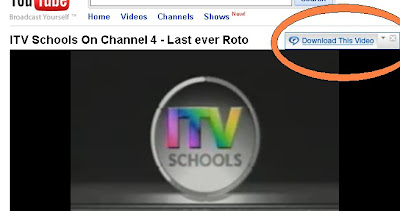
Once downloaded, pick a video you want to watch - for the benefit of nostalgia I chose the last ever outing of the ITV Schools Rotomotion logo from YouTube.
1. The 'Download this video' option appears ... highlighted in orange
2. Clicking the 'Download this video' link brings up the downloader, which looks like this
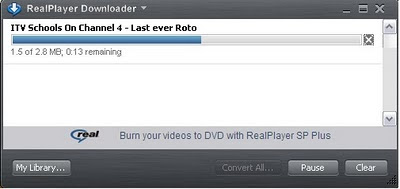
(Note that 'Convert All...' , to the left of Pause, is greyed out until the video finishes downloading.)
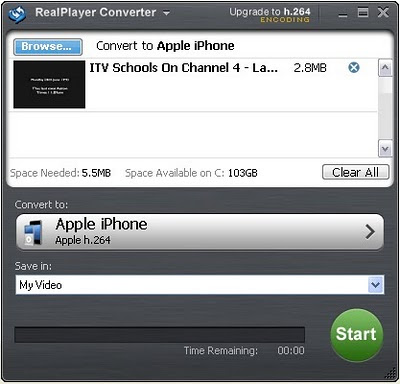
3. Once the video is downloaded, the programme will give you the option to convert it to a different filetype - that page looks like this - I've already selected the Apple iPhone option and where I want to store the video.
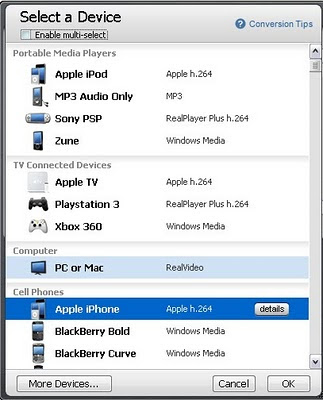
4. Because I've used it before it's already set to 'Convert to:' Apple iPhone / h.264 but there are other options, some examples of which are below
5. OKing the green Start button (in 3) starts the conversion process.
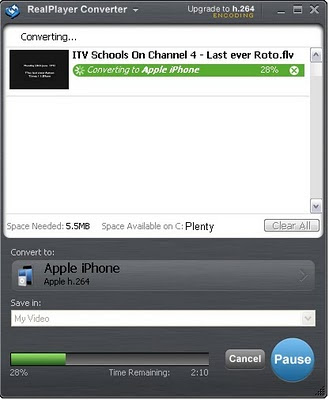
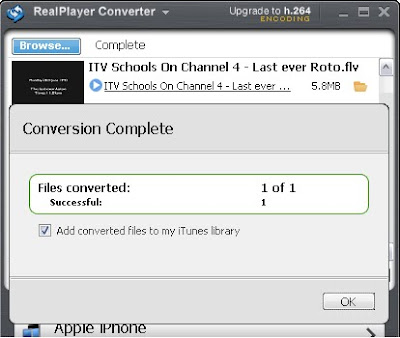
6. Once the file is converted you're given the option to save it to iTunes by clicking 'Add converted files to my iTunes library'.
7. If you've already got files on your computer and want to add them to the iTunes library, follow Step One of this page. iTunes does have its own converter - select a media file from within your library, right click and choose the option highlighted in red below.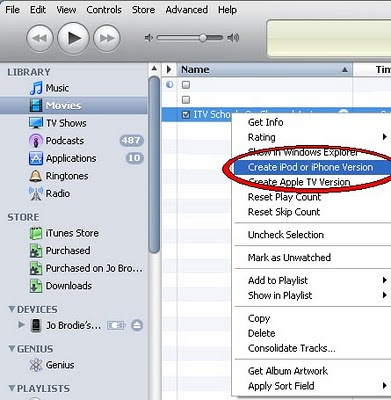
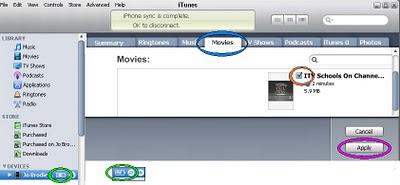
8. To get the video onto your iPhone, connect it to your computer and wait for it to be recognised. Click on the battery icon that comes up next to the DEVICES menu (highlighted in green in the screen capture below) and this will bring up everything that's on your phone. Click the 'Movies' tab (highlighted in blue), tick the check box for your video (in orange), then apply (purple).
The phone will probably automatically sync, but if not, click File / Sync 'your phone'. Open he iPod icon on your phone, let the library update and your file should now be there.
I've heavily edited some of the screenshots so let me know if they're less useful than I think they are and I'll upload the full size versions to Flickr.
If you've already got the files on your computer, jump to Bullet Point 7.
My computer is running Windows XP and I downloaded RealPlayer SP from Real which includes the RealPlayer SP Converter.
RealPlayer SP enables you to download any video that is either playing, or ready to play on the screen (a little pop up window appears giving you the opportunity to 'download now').
RealPlayer SP Converter can convert the downloaded video into a range of media, including .m4v files suitable for playing on an iPhone.
So the first step would be to download RealPlayer SP....
Once downloaded, pick a video you want to watch - for the benefit of nostalgia I chose the last ever outing of the ITV Schools Rotomotion logo from YouTube.
1. The 'Download this video' option appears ... highlighted in orange

2. Clicking the 'Download this video' link brings up the downloader, which looks like this

(Note that 'Convert All...' , to the left of Pause, is greyed out until the video finishes downloading.)
3. Once the video is downloaded, the programme will give you the option to convert it to a different filetype - that page looks like this - I've already selected the Apple iPhone option and where I want to store the video.

4. Because I've used it before it's already set to 'Convert to:' Apple iPhone / h.264 but there are other options, some examples of which are below

5. OKing the green Start button (in 3) starts the conversion process.

6. Once the file is converted you're given the option to save it to iTunes by clicking 'Add converted files to my iTunes library'.

7. If you've already got files on your computer and want to add them to the iTunes library, follow Step One of this page. iTunes does have its own converter - select a media file from within your library, right click and choose the option highlighted in red below.

8. To get the video onto your iPhone, connect it to your computer and wait for it to be recognised. Click on the battery icon that comes up next to the DEVICES menu (highlighted in green in the screen capture below) and this will bring up everything that's on your phone. Click the 'Movies' tab (highlighted in blue), tick the check box for your video (in orange), then apply (purple).
The phone will probably automatically sync, but if not, click File / Sync 'your phone'. Open he iPod icon on your phone, let the library update and your file should now be there.

I've heavily edited some of the screenshots so let me know if they're less useful than I think they are and I'll upload the full size versions to Flickr.
Sunday, 3 January 2010
Following conference hashtag tweets in real time and saving them for later
******************************************
UPDATE 7 July 2011: Google Realtime is no longer with us. Initially it seemed to be temporarily offline while under-bonnet tinkering happened and it was assumed it would be hooked up with Google+ however it now seems that Google is no longer accessing Twitter's stream as the deal ended on 2 July 2011. This isn't great.
Also, see the more up to date post linked in the column on the right hand side, about a list of Twitter tools.
******************************************
All the fashionable conferences or events have a hashtag. This turns a mere word into a clickable link which takes you to a 'channel' of tweets all talking about the same thing.
There are lots of ways of following these tweeted hashtags, in real time, and you can also save all the tweets for later. Here are some ways of doing this.
Example hashtag is #scio10 which stands for Science Online 2010.
---------------------------------------------------------------------------------------------
EDIT: 7 November 2010 - for further investigation: "Tweetdoc" as suggested by @AISSMa
- it seems to create a rather useful and straightforward PDF for you, which is a plus.
---------------------------------------------------------------------------------------------
1. Twitter itself
http://search.twitter.com - type in #scio10 or scio10 and sit back and watch. You might have to press 'refresh' every now and again (I think this depends on your browser) but it's pretty good.
Realtime? Yes
Archive? Not long-term.
Keeps picture of who is tweeting linked to their tweet? Yes
2. FriendFeed
The official conference FriendFeed room is http://friendfeed.com/scienceonline2010 which incorporates hashtag mentions and official comment from the dedicated twitter feed @scio10
My only bleat is that FriendFeed tends to lose the details of who said what, something that some of the other services seem to be able to keep (see this pic which gives an example http://www.flickr.com/photos/jodiepedia/3977940848/).
For just the tweets containing the hashtag though, use this link http://friendfeed.com/search?q=%23scio10
FriendFeed does two things - it lets you read Twitter feeds, but it also lets you comment on them and write directly to FF.
See also - Cunning use of FriendFeed - find old tweets, yours or others - for more on why I really like certain features of FriendFeed.
Realtime? Yes, freakishly good - see http://friendfeed.com/public for terrifying proof.
Archive? Excellent, persists for a long time.
Keeps picture? Not for generic feed into room, yes for individual (if on FriendFeed).
3. wthashtag - What the Hashtag
Any topic that's trending will show up automatically in wthashtag. If a topic isn't trending, then the wthashtag needs to be set up manually, for which you need a (free) account. The advantage of this is not so much the real time view of tweets (I can't remember how good this is) but the ability to generate a transcript of the last day's tweets.
Realtime? I think so, yes
Archive? Yes, but limited and not permanent
Keeps pictures? Yes
4. Twapperkeeper
#scio10 Twapperkeeper feed
No account needed to set up a twapperkeeper, although account required if you want to do more with it I think. It's a while since I've used it but I was very impressed. You can even set up a filter so that the hashtag plus another word will filter into a particular folder - this might be useful where you have several sessions running concurrently.
For example, during the recent #scidebate (debate between Ben Goldacre and Paul Drayson) I toyed with splitting examples of good science reporting from bad by using !g and !b in addition to #scidebate. Technically it worked perfectly (but it turned out that artificially splitting articles in this way was a bit of a palaver so we all quietly forgot about it) and you can see that the tweets are still there http://twapperkeeper.com/scidebate/
Realtime? I think so, but honestly can't remember
Archive? Yes, awesome
Keeps pictures? Yes
4.5. Hashtag.org
Haven't investigated it yet but looks interesting. Hat tip @zeno001
5. Tweetdeck - iPhone app
Although I do have this somewhere on my laptop I only really use it as an app on my iPhone and so my experience of it is pretty much limited to that. This requires download whereas everything else here is web-based.
Tweetdeck lets you create a deck of tweets based on a hashtag, which you can watch in real time.
Realtime? Yes
Archive? Not that I'm aware of
Keeps pictures? Yes
6. Twitterfall
Very good, although a little bit fiddly. Type in your hashtag and it does the rest.
Realtime? Yes
Archive? Not that I'm aware of
Keeps pictures? Yes
7. Monitter
Very similar to Twitterfall, but with three 'decks'.
Realtime? Yes
Archive? Not that I'm aware of
Keeps pictures? Yes
I've watched or saved a lot of conference tweets in the time I've been on Twitter and have used Tweetdeck to interact when there, Twitterfall if watching elsewhere, FriendFeed for an augmented experience, Twitter itself as a back channel (and FriendFeed) and both wthashtag and Twapperkeeper to save it all for later. I think Twitterfall is used quite successfully by events folks to show the tweets live on screen.
These are just the ones I've used or heard of. Doubtless there are others...
Thursday, 31 December 2009
iPhone screenshot or taking a 'photo' of your iPhone screen
I discovered how to do this quite by accident, after playing with all the five buttons on my iPhone and trying them in different permutations.
How to take a screenshot with your iPhone
Press the 'sleep' button and the 'home' button simultaneously (see first photo below) - the screen will 'blink' as if taking a photo (if you have the ringer button set to on it will make a camera sound).
The photo is now in your Camera roll.
See demo photos (second and third photos) at the end of this post.
Why would you want to do this?
I use this A LOT when I'm going to be travelling somewhere and can't guarantee I'll have a good wifi or 3G signal, and I might need to have a local map with me. So I check the map via my home wifi and screenshot it for use later. Clearly I also use this function for demonstration purposes too ;)
Further info
The relevant buttons are marked on this photo which I pinched from Wikimedia then tweaked.
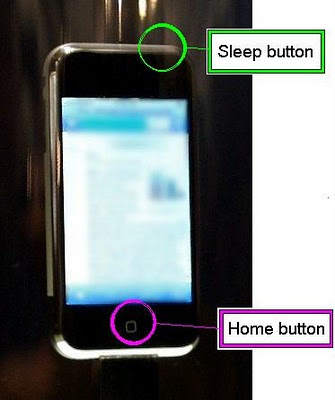
Photo credit: Flickr user lecates (http://www.flickr.com/photos/lecates/354510858/), taken from Wikimedia (http://commons.wikimedia.org/wiki/File:Apple-iPhone-001.jpg).
Examples
Screenshot of iPhone map showing London Zoo
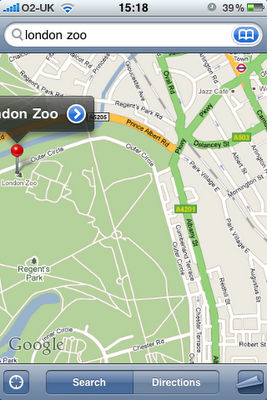
Close up - keeping this sort of thing in my Camera Roll means I'm less likely to get lost even if there's no signal.
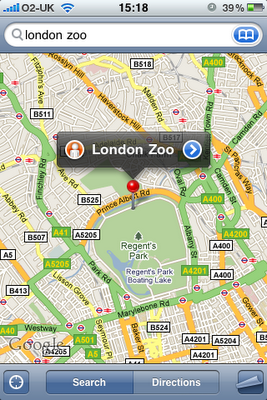
How to take a screenshot with your iPhone
Press the 'sleep' button and the 'home' button simultaneously (see first photo below) - the screen will 'blink' as if taking a photo (if you have the ringer button set to on it will make a camera sound).
The photo is now in your Camera roll.
See demo photos (second and third photos) at the end of this post.
Why would you want to do this?
I use this A LOT when I'm going to be travelling somewhere and can't guarantee I'll have a good wifi or 3G signal, and I might need to have a local map with me. So I check the map via my home wifi and screenshot it for use later. Clearly I also use this function for demonstration purposes too ;)
Further info
The relevant buttons are marked on this photo which I pinched from Wikimedia then tweaked.

Photo credit: Flickr user lecates (http://www.flickr.com/photos/lecates/354510858/), taken from Wikimedia (http://commons.wikimedia.org/wiki/File:Apple-iPhone-001.jpg).
Examples
Screenshot of iPhone map showing London Zoo

Close up - keeping this sort of thing in my Camera Roll means I'm less likely to get lost even if there's no signal.

Subscribe to:
Posts (Atom)



 Posts
Posts